

Language Learning Apps
Preply Android App: Complete Guide to Mobile Language Learning
Everything you need to know about learning languages on Android with Preply
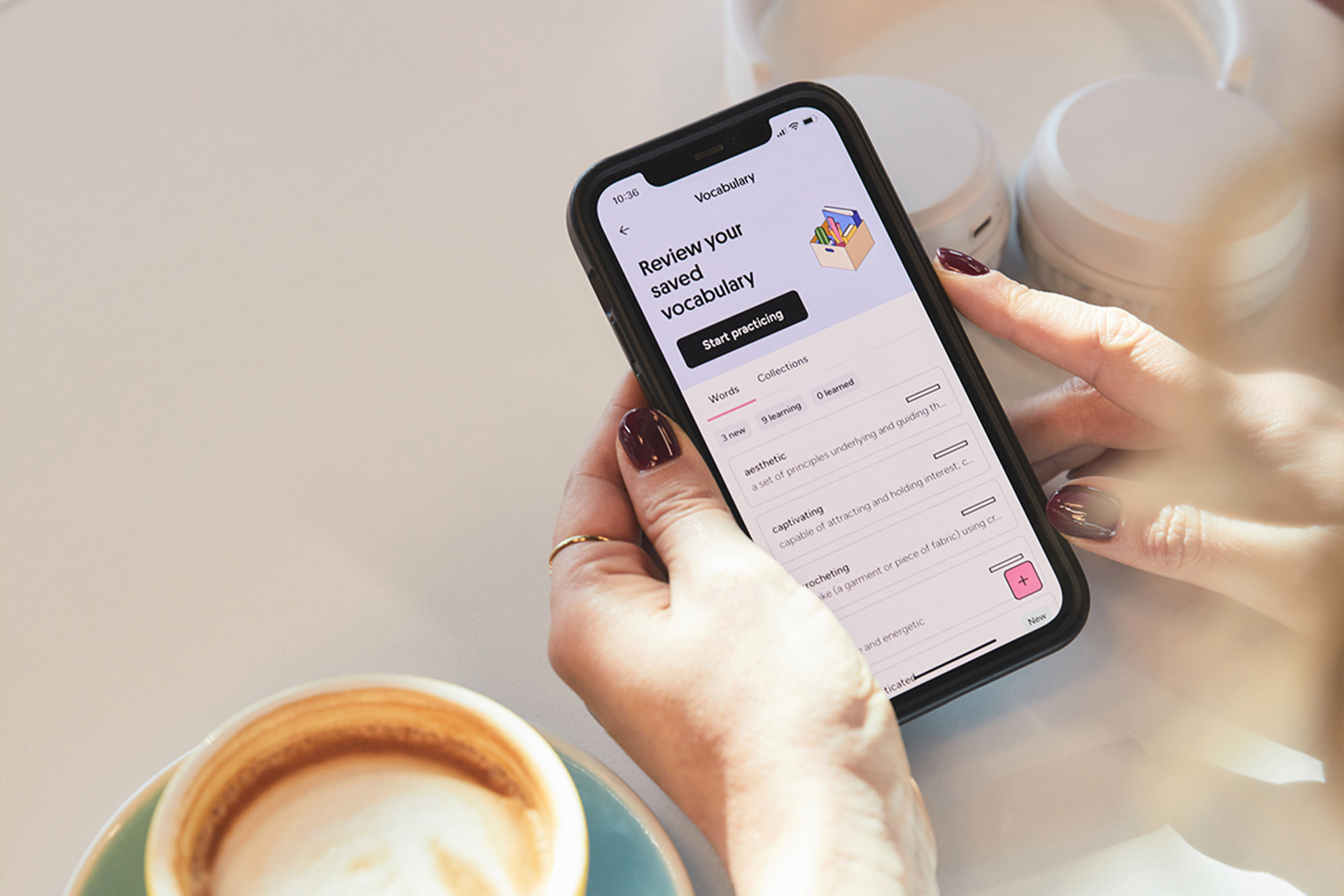
The Preply Android app brings the full tutoring marketplace to your phone. You can browse tutors, book lessons, join video calls, review materials, and track progress without opening a laptop. For anyone who fits study time into commutes, lunch breaks, or evenings on the couch, the mobile version is not just a companion — it's often the primary way lessons happen.
Contents
- 1. Getting Started with Preply on Android
- 2. Downloading and Installing the App
- 3. Setting Up Your Account and Profile
- 4. Finding Tutors on the Mobile App
- 5. Booking and Managing Lessons
- 6. In-App Learning Tools and Features
- 7. Progress Tracking and Study Materials
- 8. Subscription Management on Android
- 9. Preply App vs Desktop Experience
- 10. Troubleshooting Common Issues
- 11. Accessibility and Internationalization
- 12. Privacy, Data, and Permissions
- 13. Tips for Effective Mobile Learning
- 14. Preply for Business on Android
- 15. Final Assessment of Preply Android App
Preply launched its Android app several years after the web platform, and the difference shows. The interface feels native, not like a wrapped website. Navigation follows Material Design patterns. Gestures work as expected. Push notifications arrive reliably. The video classroom runs on WebRTC inside the app, so you don't get bounced to a browser tab when a lesson starts.
This guide covers everything from installation to advanced features. Whether you're downloading the Preply Android app for the first time or trying to get more out of the version you already have, you'll find practical details here — not marketing copy.
Getting Started with Preply on Android
The app requires Android 8.0 (Oreo) or later. That covers the vast majority of active devices. If you're on something older, the Play Store will simply hide the listing. Storage-wise, the initial download is roughly 80 MB, but the app caches lesson materials, chat history, and video thumbnails. After a few weeks of regular use, expect 300–500 MB total. You can clear cache in Android settings without losing account data.
First launch walks you through a short onboarding flow: choose your target language, set a rough level, pick a few interests so the tutor feed isn't empty, and decide whether to allow notifications. You can skip most steps and adjust later. The only mandatory choice is language — everything else is editable in settings.
One thing that catches new users off guard: the app asks for microphone and camera permissions immediately, even before you book a lesson. This is intentional — the video classroom needs them, and requesting upfront avoids a permission prompt mid-lesson. If you deny them, you can still browse and chat, but you won't be able to join calls until you grant access in system settings.
Downloading and Installing the App
The official route is the Google Play Store. Search "Preply" and look for the developer name "Preply Inc." The icon is a white speech bubble with a blue gradient on a dark background. Avoid any listing with a different developer name — there are copycats that scrape tutor data but don't connect to the real platform.
If the Play Store isn't available on your device — some Chinese phones, de-Googled ROMs, or work profiles — you can download the APK directly from Preply's website. The file is signed with the same certificate as the Play Store version, so updates from either source work interchangeably. Just enable "Install unknown apps" for your browser or file manager, open the APK, and install. The app will still check for updates via Play Services if they're present, or fall back to its own updater.
A note on APK versions: Preply occasionally rolls out staged releases. The website APK might be a version behind the Play Store for a few days. This is normal. If you install the APK and later get the Play Store version, you'll simply update in place — no data loss, no re-login.
Setting Up Your Account and Profile
You can sign up with email, Google, Facebook, or Apple ID. The Google option is fastest on Android — one tap, no password to remember. If you already have a Preply account from the web, use the same credentials. The app syncs everything: tutor favorites, lesson history, vocabulary lists, and subscription status.
Your profile has two visibility modes. Public profiles show your photo, name, learning goals, and a short bio to tutors. Private profiles hide everything except your first name. Most students keep it public — tutors tailor trial lessons better when they know your background. You can toggle this in Settings → Profile → Visibility.
The app also asks for your timezone during setup. This matters. Lesson times display in your local zone, and tutors see your availability in theirs. If you travel, the app updates automatically based on device location (if you granted location permission) or you can set a fixed timezone manually. I've seen students miss lessons because their phone switched timezones mid-flight and they didn't notice the app had adjusted.
Notification preferences are granular. You can enable or disable: lesson reminders (1 hour, 10 minutes, or both), tutor messages, price drop alerts for favorite tutors, progress reports, and promotional offers. Each has a separate toggle. The default enables everything except promos. I recommend keeping lesson reminders on — the 10-minute warning has saved me from missing calls more than once.
Finding Tutors on the Mobile App
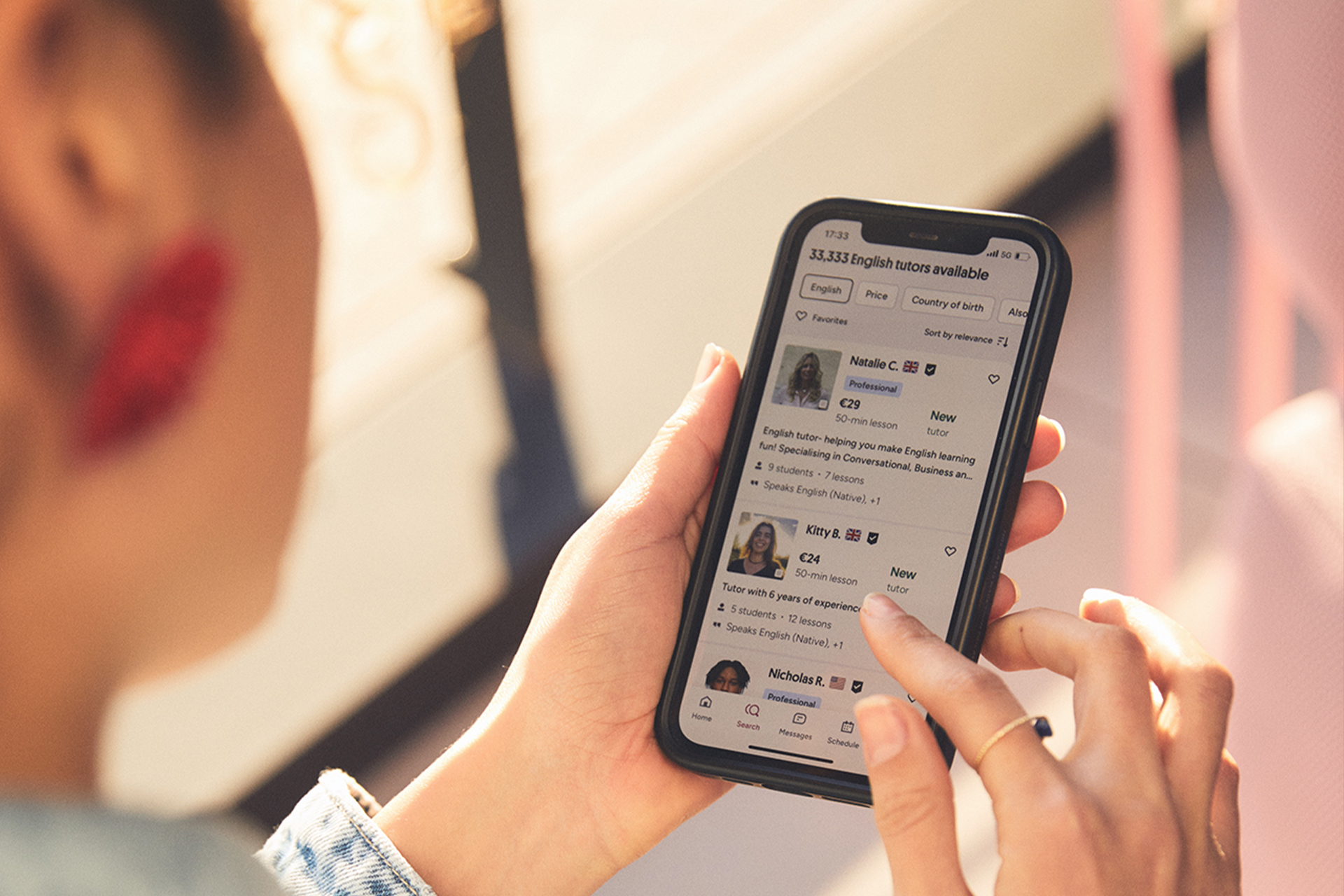
The tutor discovery flow is where the app shines. The main feed shows recommended tutors based on your language, level, interests, and past behavior. Swipe down to refresh. Pull up for filters. The filter sheet slides up from the bottom — price range, availability windows, tutor nationality, specialties (IELTS, business, kids, etc.), rating minimum, and whether they offer trial lessons.
Filters persist across sessions. If you always want tutors under $20/hour available weekday evenings, set it once. The feed respects it until you change it. There's also a "Sort by" dropdown: relevance, rating, price low to high, price high to low, and newest. Relevance uses a proprietary algorithm weighing match score, response time, and recent reviews.
Tapping a tutor card opens their profile. You get: intro video (auto-plays muted, tap for sound), hourly rate, package discounts, schedule calendar, reviews with filters (by language, level, goal), and a "Book trial" button. The calendar shows available slots in your timezone. Green dots mean open. Gray means booked. You can scroll weeks ahead. No need to message the tutor first — just pick a slot and confirm.
- Filter by price, specialty, availability, rating, nationality
- Sort by relevance, rating, price, or newest tutors
- Watch intro videos without leaving the feed
- See real-time availability in your timezone
- Book trial lessons directly from tutor profiles
One limitation: the app doesn't show tutor response time statistics that the web version displays. On desktop, you see "Usually replies within 2 hours" or similar. Mobile only shows the last active badge (green dot on avatar). If response speed matters to you, check the web profile before booking.
Booking and Managing Lessons
Booking a lesson takes three taps: choose a slot, confirm duration (30, 45, 60, or 90 minutes), and pay. Payment methods saved to your account appear automatically — credit/debit cards, PayPal, Google Pay. If you have a subscription, the lesson deducts from your balance. If not, you're charged per lesson. The app shows the final price before you confirm, including any package discount.
After booking, the lesson appears in "My Lessons" with a countdown timer. You can reschedule up to 4 hours before start time without penalty. The tutor gets a notification. If they approve, the slot moves. If they don't respond within an hour, the original time stands. Cancellations within 4 hours forfeit the lesson credit — this is platform policy, not app-specific.
The "My Lessons" tab has three views: Upcoming, Past, and Requests. Requests are pending trial lessons or schedule changes awaiting tutor approval. Swipe left on any upcoming lesson for quick actions: reschedule, cancel, message tutor, or view materials. Past lessons show duration, tutor rating prompt, and a "Review" button if you haven't left feedback yet.
Scroll horizontally to see all columns
| Action | Deadline | Result |
|---|---|---|
| Reschedule | 4+ hours before | Tutor approval required |
| Cancel | 4+ hours before | Credit refunded to balance |
| Cancel | Under 4 hours | Credit forfeited |
| Message tutor | Anytime | Opens in-app chat |
Package purchases work the same as web. You buy 5, 10, 15, or 20 hours at a discount (roughly 5–15% off single-lesson price). The app shows your remaining hours on the home screen and in the wallet section. Hours expire after 12 months of inactivity — the timer resets with each lesson. You'll get a push notification 30 days before expiry.
In-App Learning Tools and Features
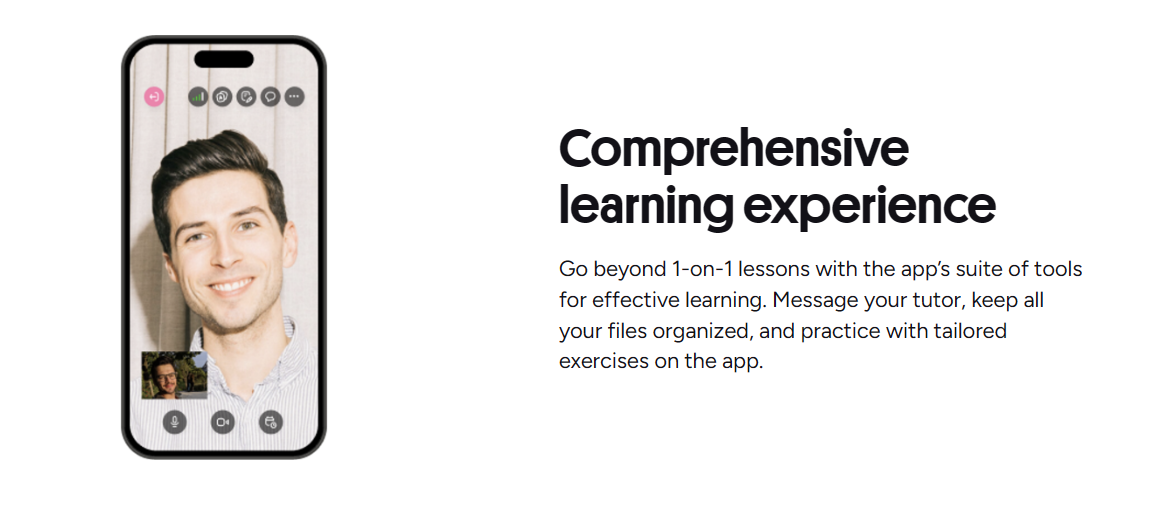
The video classroom is the core feature. It opens full-screen when a lesson starts. Controls: mute/unmute, camera on/off, switch camera (front/back), screen share, chat sidebar, and a collaborative whiteboard. The whiteboard supports drawing, text boxes, image upload, and PDF annotation. Both participants can edit simultaneously. Everything saves automatically to the lesson notes.
Screen sharing on Android requires a system-level permission dialog the first time. After granting, you can share your entire screen or a specific app. This is useful for showing homework, reviewing documents, or practicing presentations. Audio from the shared app doesn't transmit — only your microphone. If you need to play a video for the tutor, share the screen and speak over it.
The chat sidebar persists across lessons with the same tutor. You can send text, voice messages (hold to record), images, and files up to 50 MB. Voice messages are handy for pronunciation practice — record a phrase, send it, and the tutor replies with corrections. Files download to the app's internal storage and appear in the "Materials" tab for that tutor.
Vocabulary review is built in. During a lesson, you or the tutor can add words to your personal dictionary. Later, open the "Vocabulary" section for spaced-repetition flashcards. The algorithm is basic — it shows cards based on your self-rated recall (again, hard, good, easy). It's not Anki-level sophisticated, but it's convenient because the words come from actual lessons.
Progress Tracking and Study Materials
The Progress tab aggregates data from all your lessons: total hours, lessons completed, vocabulary count, and a weekly activity chart. Tutors can also assign homework — exercises, reading, writing prompts — which appears in the "Homework" subsection. You mark tasks complete, and the tutor sees your submission.
Preply's level test (available for English, Spanish, German, French, and a few others) runs entirely in the app. It takes 20–30 minutes, adapts to your answers, and returns a CEFR estimate (A1–C2). The result saves to your profile and tutors see it. You can retake monthly. The test is free for all users, not just subscribers.
Lesson notes are auto-generated from the whiteboard and chat. After each session, you get a summary screen with: new vocabulary, grammar points covered, homework assigned, and a recording link (if the tutor enabled recording). Recordings are stored for 30 days on the free plan, 90 days on Premium. Download them if you want permanent copies — the app has a "Save to device" button on each recording.
The progress charts look nice but don't replace a teacher's qualitative feedback. Use them as a supplement, not a substitute.
Subscription Management on Android
Preply offers two subscription tiers: Basic (pay per lesson) and Premium (monthly hour packages). Premium unlocks: longer recordings, priority support, detailed progress reports, and a 10% discount on additional hours. The app handles upgrades, downgrades, and cancellations in Settings → Subscription. Changes take effect at the next billing cycle.
Billing goes through Google Play Billing if you subscribed via the Play Store. That means: you manage cancellation in the Play Store app, not Preply settings. Refunds follow Google's policy (48 hours for accidental purchases, otherwise case by case). If you subscribed on the web, you manage it on the web — the app just shows the current status.
A common confusion: buying a lesson package (5, 10, 20 hours) is not a subscription. It's a one-time purchase. The hours sit in your wallet until used. Subscriptions are recurring monthly commitments. The app labels them clearly, but I've seen users think they're signing up for a monthly plan when they just want a 10-hour pack.
Preply App vs Desktop Experience
The Android app covers about 95% of what the web version does. Missing pieces: bulk tutor messaging (web only), advanced search filters like "teaches children" or "native speaker only" (mobile has basic filters), and the tutor dashboard for those who also teach. For students, the gap is negligible.
Where mobile wins: push notifications, offline vocabulary review, quick voice messages, camera integration for sharing physical materials, and one-handed operation. Where desktop wins: multi-window layout (chat + video + whiteboard side by side), keyboard shortcuts, easier typing for long messages, and browser extensions like dictionary lookup.
You can switch seamlessly. Start a lesson on your phone, continue on your laptop — the session transfers if you log in on both. The video call reconnects automatically. Chat history syncs instantly. Vocabulary and notes are shared. I regularly begin a lesson on the train via phone, then switch to desktop when I reach my desk for the whiteboard-heavy portion.
Scroll horizontally to see all columns
| Feature | Android App | Desktop Web |
|---|---|---|
| Video classroom | Full support | Full support |
| Whiteboard collaboration | Full support | Full support |
| Push notifications | Yes | Email only |
| Offline vocabulary | Yes | No |
| Advanced tutor filters | Basic | Full |
| Bulk messaging | No | Yes |
| Tutor dashboard | No | Yes |
| Keyboard shortcuts | No | Yes |
Troubleshooting Common Issues
Video freezes or drops: usually network-related. The app shows a connection quality indicator (green/yellow/red) in the classroom toolbar. If it's yellow or red, try: switching from Wi-Fi to mobile data (or vice versa), closing background apps, disabling battery saver for Preply, or lowering video quality in Settings → Video → Quality (options: Auto, 720p, 480p, 360p). Auto adapts, but forcing 480p can stabilize a shaky connection.
Audio echo: almost always caused by the tutor's setup, not yours. If you hear yourself, ask them to use headphones. The app has echo cancellation, but it struggles with loud speakers. If the tutor hears echo, you're the one who needs headphones.
Notifications not arriving: check Android's battery optimization. Long-press the app icon → App info → Battery → Unrestricted. Also verify notification channels in Settings → Notifications — each type (reminders, messages, etc.) has its own channel that can be silently blocked by system updates.
App crashes on launch: clear storage (Settings → Apps → Preply → Storage → Clear storage). This logs you out but fixes corrupted local data. Your account data is server-side. If crashes persist, uninstall, reboot, reinstall from Play Store. Report the crash via the "Help" section — the dev team reads those.
- Force 480p video for unstable connections
- Use headphones to prevent echo
- Set battery optimization to Unrestricted
- Clear app storage for launch crashes
- Check notification channels after OS updates
Accessibility and Internationalization
The app supports 20+ interface languages. Change it in Settings → Language. The change applies immediately — no restart needed. Right-to-left layouts work for Arabic, Hebrew, Persian, and Urdu. Font scaling follows system settings (Settings → Accessibility → Font size). TalkBack and VoiceOver support is decent: labels are descriptive, buttons have hints, and the video classroom announces connection state changes.
One gap: the whiteboard isn't fully screen-reader accessible. Drawing actions aren't announced. If you rely on TalkBack, ask tutors to describe what they're drawing or use the chat for text-based explanations. The Preply team knows about this — it's on their roadmap but no ETA.
Privacy, Data, and Permissions
The app requests: camera, microphone, storage (for file downloads/uploads), contacts (optional, for inviting friends), and location (optional, for timezone detection). You can deny any except camera/microphone for video calls. Denying storage means you can't download lesson recordings or upload homework files — you'll get a prompt each time you try.
Preply's privacy policy covers mobile the same as web. Lesson recordings are encrypted in transit and at rest. Chat messages are encrypted in transit only (not end-to-end). The company is GDPR-compliant. You can request data export or deletion from Settings → Privacy → Data Request. The process takes up to 30 days.
If you use a work profile or device management (MDM), your IT admin may see that Preply is installed and how much data it uses. They cannot see lesson content, chat messages, or tutor details — Android's work profile isolation prevents that. But they can block the app entirely via policy.
Tips for Effective Mobile Learning
Use a stand. Holding your phone for a 60-minute lesson is tiring, and the camera angle ends up unflattering. A cheap phone stand ($5–10) lets you position the device at eye level, free your hands for notes, and keep the frame stable. If you don't have one, lean the phone against a mug or book stack.
Enable "Do Not Disturb" with exceptions for Preply. Android's Focus mode can allow only Preply notifications during a scheduled study block. This prevents WhatsApp, email, or game alerts from stealing your attention mid-lesson. Set it to activate automatically when you open the app (Digital Wellbeing → Focus mode → Add schedule).
Download materials beforehand. If your tutor shares a PDF or video link before class, open it in the app while on Wi-Fi. The app caches it. Then you're not burning mobile data or waiting for loads during the lesson. The "Materials" tab for each tutor shows everything they've shared — tap the download icon next to any file.
Record your own practice. The voice message feature in chat isn't just for tutors. Record yourself reading a text, pronouncing vocabulary, or doing a speaking exercise. Play it back. Compare to native audio. Send it to your tutor for feedback. This turns passive review into active production.
A phone stand and Do Not Disturb mode do more for lesson quality than any app feature. Physical setup matters.
Preply for Business on Android
Corporate accounts work on the same app. If your company uses Preply Business, you log in with your work email (SSO supported via SAML/OIDC). The app detects the enterprise license and unlocks: admin-assigned learning paths, team dashboards, centralized billing, and usage reports for managers. Employees see a "Business" tab with their assigned curriculum.
Admins manage everything from the web dashboard. The mobile app is read-only for admin functions — you can't add users, assign courses, or view org-wide analytics on Android. This is by design. The mobile experience focuses on the learner side: taking lessons, completing assignments, tracking personal progress.
One nice touch: the app shows your company's branding (logo, colors) on the home screen when logged into a business account. It's a small thing, but it helps distinguish personal vs. work learning if you use the same app for both.
Final Assessment of Preply Android App
The Preply Android app is solid. It's not a stripped-down companion — it's a full-featured client that handles the entire learning workflow. Video calls are stable, the tutor marketplace is searchable, scheduling works offline-aware, and the learning tools (whiteboard, vocabulary, homework) are genuinely useful. The few missing pieces (advanced filters, bulk messaging, tutor dashboard) only affect power users or tutors.
If you're deciding between mobile and desktop, don't. Use both. The sync is seamless. Start lessons on whichever device is at hand. The app's strengths — portability, notifications, camera integration, voice messages — complement the desktop's strengths — screen real estate, keyboard, multi-window. Together they cover more contexts than either alone.
Download it from the Play Store or grab the APK from preply.com. Sign in with your existing account or create one. Book a trial lesson (most tutors offer 50% off the first hour). See how it fits your routine. The app is free. The only cost is the lessons you choose to take.
Frequently Asked Questions
Can I use the Preply Android app without a subscription?
Yes. The app is free to download and use. You pay per lesson or buy hour packages. Subscriptions are optional and only add recording length, priority support, and a discount on extra hours.
Does the Preply app work on tablets and Chromebooks?
Yes. The Android app runs on tablets and Chrome OS devices with Play Store support. The layout adapts to larger screens, though it's still a phone-optimized interface, not a dedicated tablet UI.
Can I take lessons on mobile data instead of Wi-Fi?
Yes. A stable 4G/LTE or 5G connection works fine. Expect 300–500 MB per hour at 720p. Lower the video quality to 480p in settings to reduce data usage to roughly 150–250 MB/hour.
How do I update the Preply Android app?
Updates come through the Google Play Store automatically if enabled. You can also check manually in Play Store → Manage apps → Preply → Update. APK installs update in place when you open a newer APK file.
Are lesson recordings saved on my phone or in the cloud?
Recordings are stored in Preply's cloud. The app streams them on demand. You can download individual recordings to your device for offline viewing — they save to the app's internal storage, not your gallery.
Can I switch between the Android app and desktop during a lesson?
Yes. If you log in on both devices, you can join the same lesson from either. The video call reconnects automatically. Chat, whiteboard, and notes sync in real time.
What Android version does the Preply app require?
Android 8.0 (Oreo) or later. Devices running Android 7 or older cannot install the current version from the Play Store.